
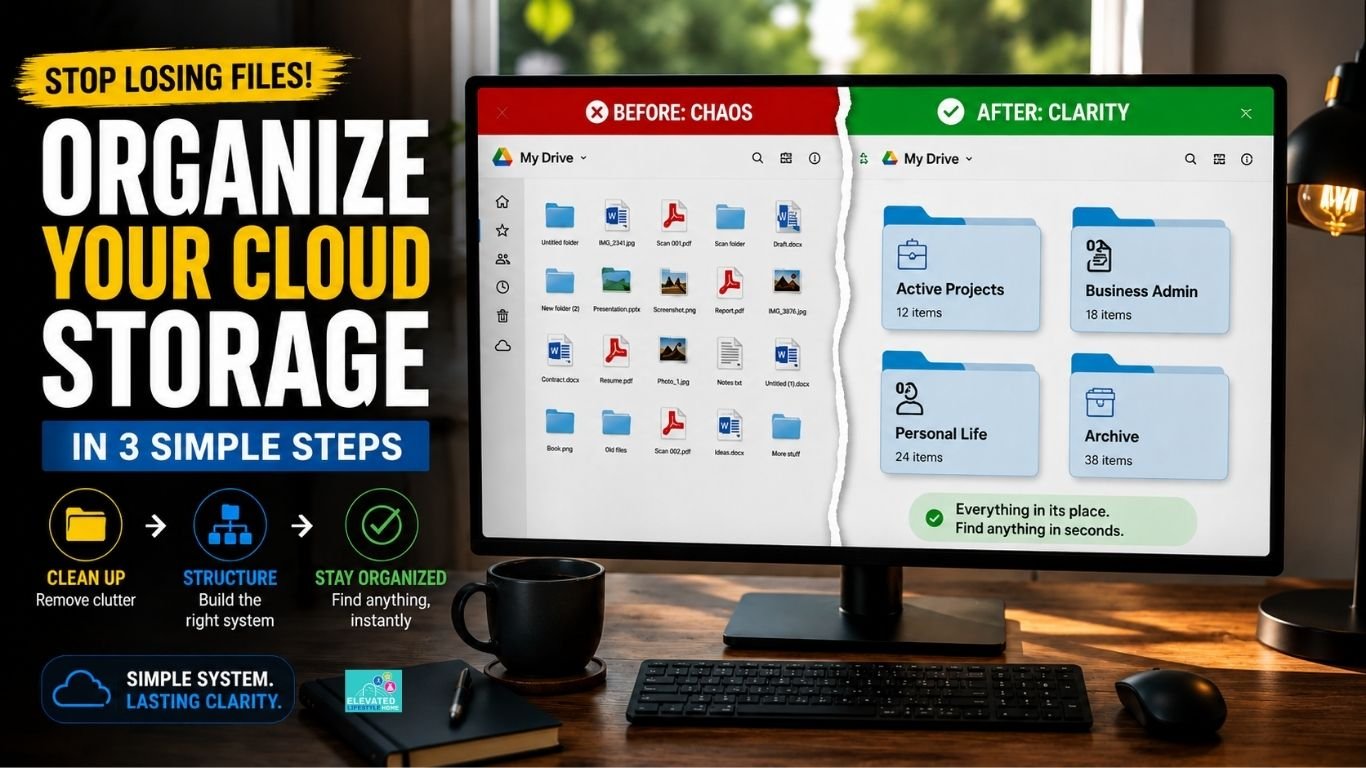
The modern digital workspace is usually built on good intentions. We set up high-speed cloud subscriptions, create a few initial folders, and promise ourselves that we will keep everything clean.
Yet, underneath this organized surface, a slow, chaotic pileup of files happens almost immediately.
We manage our daily meetings with exact precision, but we routinely surrender our cloud drives to random downloads, misplaced PDFs, and endless untitled drafts.
For high achievers striving for consistent daily productivity, digital space isn’t just a place to hold files; it is the core foundation behind your daily output. Losing time to a scattered cloud directory breaks your momentum and drains your energy.
Learning how to organize cloud storage is more than a simple tech task—it is a practical system that saves time, reduces stress, and keeps your digital workspace efficient.
The Friction of Digital Clutter: Why Default Cloud Setups Collapse
A messy cloud drive rarely happens overnight. It creeps in during busy workdays, quietly turning your storage into a digital maze that slows down your afternoon drive.
One minute you are looking for a simple client invoice, and the next, you are clicking through seven layers of deeply nested folders without finding what you need.
Understanding why modern drives fail requires looking closely at how default cloud setups encourage bad saving habits.
Most cloud platforms are designed for endless storage rather than immediate file retrieval. They encourage you to dump files into a central space, assuming that a quick search bar query will always save the day.
But search functions fail when you can’t remember the exact file name you used six months ago.
The visual clutter of seeing hundreds of unorganized documents sitting in your root directory creates subtle, continuous stress. It forces your brain to process visual noise every single time you upload or open a document.
Quick Takeaway:
Search bars are a secondary safety net, not a primary organization system. Relying entirely on drive search creates cognitive fatigue and slows down your daily file retrieval speed.
Fixing this isn’t about setting up a complex, over-engineered tagging system that takes hours to maintain. It requires building a simple, intuitive structure that aligns with how you actually work.
When your cloud drive has clear, predictable boundaries, saving a file becomes an automatic, effortless action rather than a momentary decision that adds to your daily fatigue.
How to Clean Up Cloud Storage Without Losing Files

Restructuring a messy drive often triggers a quiet sense of panic. The fear of accidentally deleting an important tax document, a legacy project file, or a sentimental photo keeps most people stuck in digital clutter forever.
Learning how to clean up cloud storage without losing files starts with removing the risk of accidental loss before you touch a single folder.
The Rapid File Audit
Before you begin moving or deleting anything, set up a temporary holding folder named “Archive_Staging” directly in your root directory. Move every loose file that is currently floating on your main drive into this single folder.
This simple move cleans up your primary visual space instantly without destroying a single piece of data. Your drive looks organized immediately, giving you a calm, fresh workspace while your older files sit safely in one isolated location ready for review.
Safe Deletion Rules for Legacy Archives
Once your loose files are staged safely, review them using a strict, low-friction rule set. Sort the contents of your staging folder by “Date Modified” or “File Type” rather than scanning through file names alphabetically.
This groups old installation files, duplicate screenshots, and outdated project drafts together naturally. According to digital workflow studies from productivity researchers, evaluating files by age rather than context can significantly reduce decision fatigue.
If a file hasn’t been opened in two years and holds no legal, financial, or sentimental value, delete it safely. If you are unsure, move it to a dedicated “Cold Storage” folder and get back to your active work.
How to Create an Efficient Cloud File Structure

A messy directory structure is usually the result of over-categorization. When you create separate folders for every micro-topic, you end up with a deep, confusing maze that requires dozens of clicks just to store a single document.
Learning how to create an efficient cloud file structure requires shifting to a broad, shallow hierarchy designed for speed.
Once your folder hierarchy is in place, the next step is maintaining it consistently. Our guide on how to organize digital files efficiently shares practical habits for keeping your system organized long term.
The 3-Tier Folder Taxonomy
To maintain a clean digital environment, restrict your main drive structure to exactly three core levels:
- Level 1: Core Life Domains (Top-Level Folders): Limit this to 4–6 broad categories maximum (e.g.,
01_Active_Projects,02_Business_Admin,03_Personal_Life,04_Archive). - Level 2: Entity or Project Name: Specific sub-folders inside a domain (e.g.,
Client_A,Tax_Records_2026,Home_Renovation). - Level 3: Document Groups: The final layer for specific asset types (e.g.,
Invoices,Contracts,Design_Assets).
Quick Summary: The 3-Tier Depth Limit
Root Drive ➔ 01_Active_Projects ➔ Project_Alpha ➔ Final_Deliverables

(Never exceed 3 clicks to reach any active document in your cloud system.)
Establishing Strict Depth Limits for Daily Speed
Never create a Level 4 folder. Deep folder nesting is the primary cause of lost documents and duplicated work.
When a folder path becomes too deep, your brain naturally resists navigating through it, prompting you to save files directly to your desktop or main root drive out of pure convenience.
Keeping your folder depth shallow ensures that every file in your system stays visible and accessible within three quick clicks.
Best Folder Structure for Personal Documents

Mixing personal files with professional deliverables is a fast way to create digital chaos. When personal medical records, vehicle titles, and home insurance policies sit next to client briefs and financial spreadsheets, your drive loses its structure.
Establishing the best folder structure for personal documents requires building a clean, private partition that keeps your life administration completely organized.
Essential Categories for Life Administration
Personal documents require a predictable, life-centered layout that handles administrative needs without cluttering your daily view. Create a dedicated top-level folder named 03_Personal_Life and organize it into five essential sub-categories:
Financial_&_Taxes:Bank statements, tax filings, investment records, and property assessments.Health_&_Medical:Family health records, insurance policies, and coverage summaries.Identity_&_Legal:Passports, birth certificates, estate planning, and official IDs.Property_&_Assets:Vehicle titles, home maintenance logs, lease agreements, and warranties.Personal_Development:Education transcripts, certifications, and long-term goal planning.
Partitioning Personal Life From Professional Deliverables
To maintain strict better focus, use visual numerical prefixes for your main categories (e.g., 01_Work, 02_Personal). This simple trick forces your cloud drive to sort your folders logically rather than alphabetically.
It keeps your primary work assets at the top of your screen during office hours, while keeping personal life administration neatly organized directly below it. I’ll admit—I used to let personal tax scans and client drafts mix freely on my primary drive.
The moment I separated them with strict numerical partitioning, the visual noise vanished, and my focus at work improved immediately.
The File Velocity System™: Organizing Your Cloud Storage for Immediate Retrieval
Relying on manual sorting every time you finish a document creates friction that leads to digital clutter. When you have to pause and decide where a file belongs, you are more likely to dump it on your desktop or leave it floating in your main drive.
To keep your cloud drive organized, you need an automatic workflow that removes daily decision-making.
The File Velocity System™ is a simple three-step method designed to move files from your downloads folder to their permanent home without slowing you down.
Quick Summary: The File Velocity System™ Pipeline
Inbox Staging (Stage) ➔ Active Workspace (Process) ➔ Cold Storage (Archive)

(A clear, automated path that prevents files from cluttering your main drive.)
Phase 1: The Inbox Staging Protocol
Designate your local Downloads folder or a temporary cloud folder named 00_Inbox as your single entry point for all new files.
Never save a new download directly into your core sub-folders. Treat your inbox as a temporary pass-through space—not a permanent storage locker.
By funneling all incoming assets through one temporary location, you protect your main directory structure from unsorted downloads, random invoices, and temporary attachments.
Phase 2: Active Workspace Categorization
At the end of every workday, spend two minutes clearing your 00_Inbox. Move active items directly into your Level 2 project folders (such as 01_Active_Projects/Project_Beta).
If a document requires immediate action the following morning, keep it in a dedicated 01_In_Progress folder.
Giving active files a consistent, visible location removes the friction of starting your workday and eliminates the habit of creating temporary desktop shortcuts.
Phase 3: The Cold Storage Transfer Rhythm
A major reason cloud drives become cluttered is that completed project files sit alongside active work forever. When a project finishes, move its entire folder from 01_Active_Projects into 04_Archive.
Archiving completed projects clears your daily view while keeping legacy files safely stored and searchable. Running this transfer rhythm at the end of each month keeps your active workspace clean and easy to navigate.
Keeping your virtual files organized is much easier when your physical workspace is just as organized. Learn how to organize your desk for productivity to create a cleaner environment that supports faster file management and better focus.
How to Stop Creating Duplicate Files in Cloud Drives

Duplicate files waste cloud storage space and create confusion around which document is the latest version. Opening a proposal only to realize you edited an older draft an hour ago wastes time and disrupts your focus.
Learning how to stop creating duplicate files in cloud drives requires setting clear naming conventions and fixing multi-device sync settings.
Standardized File Naming Rules
Stop using vague file names like Draft_Final.docx or Proposal_v2_edit.pdf. When file names lack structure, you end up saving multiple variations in different folders just to be safe. Adopt a clean, standardized naming format across your entire drive:
YYYY-MM-DD_[Category]_[ProjectName]_[Version]
For example, a client contract should be saved as 2026-07-22_Contract_AlphaMedia_v1.0.pdf. Placing the date first automatically sorts your files chronologically, while the explicit version number prevents duplicate drafts from cluttering your search results.
Quick Takeaway
Use integer versioning (v1.0, v2.0) for major revisions and decimals (v1.1, v1.2) for minor edits. Never append the word "FINAL" to a file name.
Resolving Multi-Device Sync Conflicts
Sync conflicts happen when you edit the same cloud document across multiple devices—like a laptop and a desktop—before the file fully syncs. Cloud platforms resolve this by creating duplicate files with labels like (Conflicted Copy).
To prevent this, allow your local desktop client a few seconds to finish syncing before shutting down your computer, and close active cloud documents on your laptop before opening them on another machine.
Common Cloud Storage Mistakes That Secretly Create Digital Clutter
Even with a solid structure in place, small habits can quietly reintroduce clutter into your cloud drive. Recognizing these common mistakes helps you maintain a clean digital workspace with minimal ongoing effort.
If your devices feel overloaded beyond cloud storage alone, our complete guide to digital decluttering explains how to simplify your entire digital environment.
The Desktop Stash Trap
Using your desktop as a temporary holding area for active files is a habit that quickly leads to a messy workspace. Files saved to the desktop are often forgotten, creating visual clutter that distracts you every time you open your computer.
Instead of saving items to your desktop, route them through your 00_Inbox protocol so every document moves naturally into your organized cloud drive.
Mismanaging Root Directory Access
Your root directory is the main screen of your cloud drive. Allowing loose spreadsheets, PDFs, or unorganized folders to sit in this space creates instant visual noise.
Keep your root directory strictly limited to your core domain folders (such as 01_Active_Projects, 02_Business_Admin, 03_Personal_Life, and 04_Archive).
Keeping loose files out of the main directory gives your drive a clean, structured look every time you log in.
Advanced Synchronization and Backup Strategies for professional workflow
Maintaining an organized cloud drive requires smart sync settings that keep your local computer running fast. Downloading every single cloud file to your computer uses up hard drive space and slows down your system.
Utilizing selective sync or on-demand file features keeps your active files available locally while keeping larger archives stored safely in the cloud. Setting up automated background backups protects your work without requiring manual effort.
According to data management insights from the National Institute of Standards and Technology (NIST), keeping at least one offsite cloud copy of your primary files prevents permanent data loss from local hardware failure.
Configuring your cloud storage to sync quietly in the background gives you complete peace of mind, letting you focus on your high-value work.
A well-organized drive should always be paired with a reliable backup strategy. Learn how to back up digital files safely so your important documents remain protected even if a device fails.
Premium Digital Tools to Maintain an Organized Drive
You do not need dozens of complicated apps to keep your cloud drive running smoothly. A few simple, reliable tools can help manage duplicate files and maintain your folder structure effortlessly:
- Gemini for Google Drive: Uses smart search and natural language to help you find specific documents instantly without digging through subfolders.
- Duplicate File Finder: Scans your cloud directories safely to identify and remove identical drafts, photos, and files.
- Hazel (Mac) or FileJuggler (Windows): Automated background utilities that organize your local downloads folder based on rules you set, moving files to the cloud automatically.
Using these simple tools alongside a clean folder structure automatically keeps your digital workspace organized, saving you time every single week.
Bringing order to a cluttered cloud drive does not require hours of painful sorting. If you want a simple, step-by-step framework to clean up your folders and keep them organized, grab our free one-page guide.
Conclusion: Reclaiming Peace of Mind Through Digital Order
A clean cloud drive is much more than an organized list of files. It is a quiet, reliable space that protects your time, reduces daily distraction, and keeps your work moving forward smoothly.
Clearing away digital clutter removes the small, frustrating delays that drain your energy throughout the day. When your files are easy to find, saving a document becomes simple and automatic.
You free up mental energy to focus on the projects that truly matter. Take a few minutes today to simplify your digital workspace, clear out the noise, and enjoy the calm that comes with a well-organized drive.
Control your digital environment so it serves your focus every day.
Frequently asked questions on cloud drive organization
How to organize cloud storage for quick daily retrieval?
Limit your root drive to a maximum of four to six core domain folders using a numerical prefix (like 01_Work or 02_Personal). Keep your directory depth shallow so you never have to click more than three times to reach an active document.
How to clean up cloud storage without losing files accidentally?
Create an Archive_Staging holding folder directly in your root directory and move all loose, unsorted files into it first. Sort the contents by date modified rather than alphabetically, deleting obvious junk while safely moving older important records into a cold storage folder.
How to create an efficient cloud file structure for a messy workspace?
Adopt a strict 3-tier folder hierarchy that separates top-level domains, active project names, and specific document groups. Restricting your folder structure to three levels prevents nested folder mazes and keeps your files visible at a glance.
What is the best folder structure for personal documents?
Establish a dedicated Personal_Life directory split into broad administrative categories like Financial_&_Taxes, Health_&_Medical, and Identity_&_Legal. Using numerical prefixes keeps personal life folders organized directly below your daily work files without cluttering your workspace.
How to stop creating duplicate files in cloud drives when syncing devices?
Standardize your file naming format using a YYYY-MM-DD_[Name]_[Version] structure instead of appending vague tags like “FINAL”. Give your local cloud client a few seconds to finish syncing before switching between your laptop and desktop.
Why does my cloud storage keep filling up so fast?
Unsorted download folders, automatic multi-device photo backups, and duplicate project drafts quietly consume storage quotas over time. Setting up an inbox staging folder prevents temporary downloads from cluttering your main drive archives permanently.
How often should I clean out my cloud storage folders?
Spend two minutes at the end of each workday clearing your temporary inbox folder into active project directories. Run a quick monthly archive rhythm to transfer finished project folders into cold storage to keep your active workspace lightweight.
Is it better to organize files by year or by project type?
Organize active files by project type first so you can access current deliverables without navigating through date archives. Reserve chronological year-based organization for your cold storage and financial archives.
Should I use drive search instead of creating folders?
Search functions work best as a secondary backup rather than your primary file organization system. Relying entirely on search creates mental friction when you cannot recall exact file names from months ago.
How do I deal with shared cloud folders from team members?
Add shortcut links of high-frequency shared folders directly into your active project directories rather than letting them float in your main shared feed. This keeps team assets accessible within your personal 3-tier structure.
Why can’t I find files in my cloud storage?
Files often become difficult to find because they are saved in inconsistent folders, given unclear names, or buried inside deeply nested directories. A simple folder structure with standardized file names makes retrieval much faster and reduces the need to rely entirely on search.
What is the biggest headache you run into when trying to keep your cloud drive organized? Drop a comment below and let us know how you currently manage your digital folders.
