
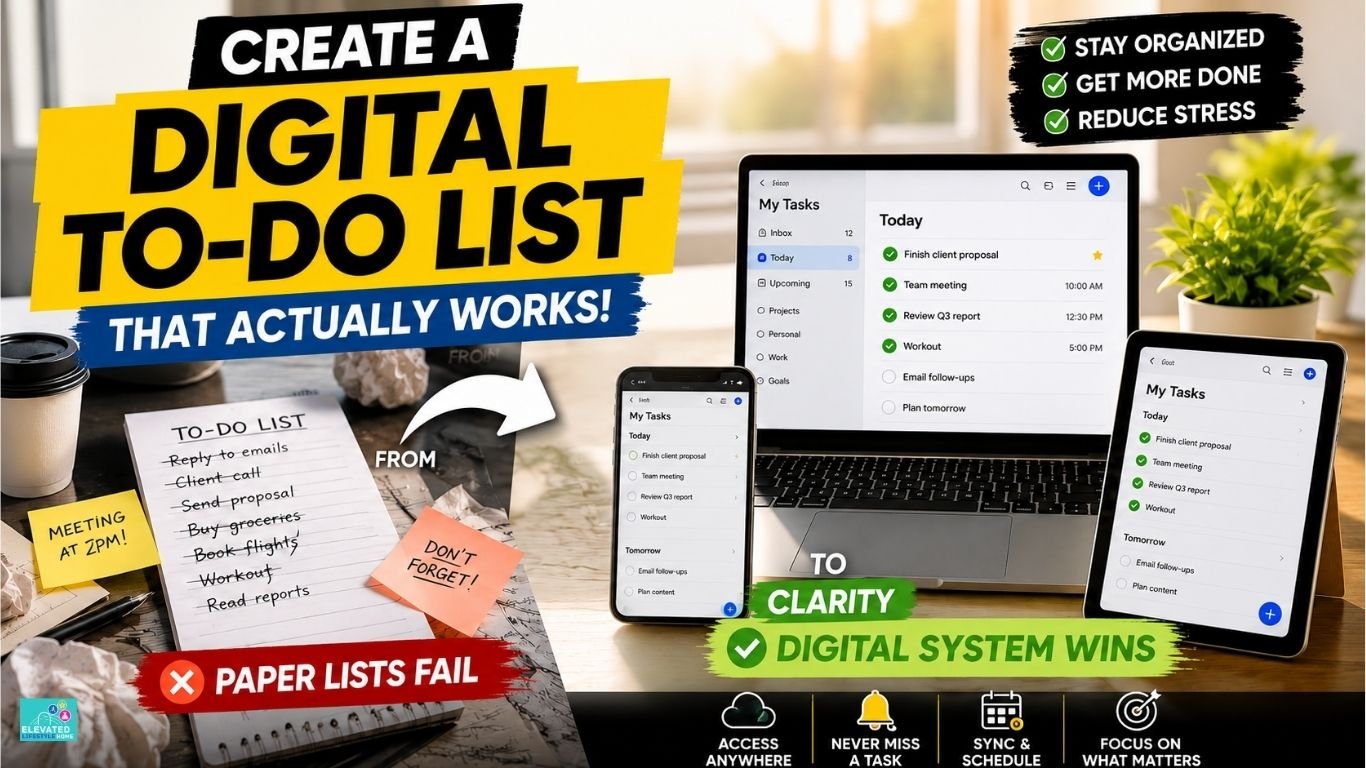
The modern workday often begins with good intentions written on a fresh sticky note. We jot down our top priorities, pour a cup of coffee, and promise ourselves that today will be different.
Yet, by mid-afternoon, that paper list is covered in scribbles, forgotten errands, and half-finished ideas. Whether you’re managing work, studies, or personal tasks, switching to a digital to-do list can help you stay organized and productive.
Paper lacks agility, offers no easy backup, and can quickly become cluttered as priorities change.
Learning how to create a digital to do list is not merely an exercise in downloading a new productivity application; it is an essential lifestyle upgrade designed to restore your mental clarity, streamline daily output, and protect your peace of mind.
Disclosure: This article contains affiliate links. If you purchase a product through one of these links, I may earn a small commission at no additional cost to you. I only recommend products that I believe may be useful for creating a more organized and productive workspace.
The Friction of Paper: Why Analogue Systems Fail Modern Workflows

A paper to-do list feels satisfying for approximately twenty minutes. The physical act of pressing ink to paper offers a brief sense of control, but that feeling erodes the moment your workday demands dynamic adjustments.
Client meetings shift, urgent emails derail your morning, and new project deliverables land in your inbox. Paper cannot adapt to this volatility.
If your overall workflow feels messy, these practical work organization tips can help you build a more structured daily routine.
It remains static, forcing you to cross out lines, draw confusing arrows, or continually rewrite master lists at the end of every exhausting evening.
The deeper issue lies in how unorganized tasks impact your brain. Psychologists refer to the cognitive weight of unfinished, floating commitments as the Zeigarnik Effect.
When your tasks are scattered across physical notebooks, loose receipts, and temporary sticky notes, your brain treats every single item as an immediate, high-stakes emergency.
It keeps those open loops running silently in the background, draining your mental energy before you ever complete a high-value project.
Quick Takeaway
Analogue lists lack version control and dynamic prioritization. Relying on paper forces your brain to store task metadata, leading to decision fatigue and fragmented focus.
Transitioning to a digital system is not about abandoning the tactile pleasure of writing; it is about building a reliable mental safety net.
If you still prefer the feel of handwriting but want a more flexible digital workflow, a reusable digital notebook can offer a practical middle ground between traditional paper and digital task management.
View on AmazonA well-constructed digital framework acts as an external brain. It holds your commitments securely, categorizes them automatically, and presents only what requires your immediate attention right now.
How to Build an Efficient To-Do List That Actually Works

The market is flooded with complex task management tools, each promising to revolutionize your output. Yet, many professionals fall into the trap of spending more time customizing buttons, colors, and automation scripts than actually completing real work.
Achieving the best digital to do list setup requires choosing a clean, minimalist architecture that serves your focus rather than distracting it.
Choosing the Right Minimalist Architecture
Whether you select Apple Reminders, Todoist, or a streamlined Notion template, your software must meet three non-negotiable criteria: rapid capture speed, reliable cloud synchronization, and customizable views.
If capturing a new task feels slow or cumbersome, your system is more likely to fail during high-stress workdays. Select an application that launches instantly on both your mobile device and desktop workstation.
Structuring Core Life Domains vs. Daily Action Items
Avoid dumping every thought into a single, overwhelming master view. Divide your digital workspace into four distinct, high-level domains:
01_Executive_Output:High-impact professional projects, client deliverables, and strategic growth initiatives.02_Business_Admin:Invoicing, email triage, recurring operational reviews, and system maintenance.03_Personal_Life:Health appointments, household logistics, family commitments, and financial management.04_Someday_Maybe:Low-priority ideas, books to read, travel goals, and creative experiments.
Keep these domains strictly partitioned. During working hours, your primary view should reflect only 01_Executive_Output and urgent administrative items. I remember early in my career, I kept personal grocery lists right next to major client campaign launches.
Seeing “buy almond milk” while trying to finalize a quarterly strategy deck created subtle visual noise that repeatedly broke my momentum. The moment I cleanly partitioned my domains, I found it much easier to protect my deep-work time.
How to Keep Your Daily To-Do List Manageable
An endless list of twenty items is not an execution plan; it is a wish list that guarantees disappointment.
By midday, staring at an impossible workload triggers overwhelm, prompting you to seek easy dopamine hits by completing minor, low-impact chores while avoiding deep, strategic thinking.
Learning how to build an efficient to do list requires designing a daily workload that respects your finite cognitive energy.
The Rule of Three: Defining Non-Negotiable Wins
Every morning, before opening your email inbox or checking team communication channels, review your master task list and select exactly three non-negotiable outcomes for the day.
These are the critical tasks that, if completed, will make the day an absolute success regardless of whatever sudden emergencies arise later.
- Primary Win: A complex, high-friction task requiring deep focus (e.g., drafting a client proposal).
- Secondary Win: A medium-effort structural task (e.g., reviewing technical specifications).
- Tertiary Win: An important operational item (e.g., clearing financial approvals).
The Daily Three Rule
Master List (50+ Items) ➔ Morning Filter ➔ 3 Non-Negotiable Wins

(Never allow your daily active view to display more than three primary targets at once.)
You can also explore our guide on how to organize work tasks efficiently for additional prioritization techniques.
Eliminating Hidden Task Friction and Micro-Distractions
A major reason tasks stall on your list for days is poor phrasing. A vague entry like “Work on taxes” feels intimidating to your brain, causing instant procrastination. Break broad projects down into tiny, explicit physical actions.
Instead of “Work on taxes,” write “Download Q3 bank statements to PDF.” Specificity eliminates decision friction, making the initial step effortless to start.
How to Organize Tasks in Google Keep Without Visual Clutter

For professionals who prefer light, frictionless capture tools, Google Keep offers an incredibly fast workspace. However, without intentional setup, its default sticky-note style layout quickly turns into a wall of colorful visual noise.
Learning how to organize tasks in Google Keep ensures you maintain speed without sacrificing structural clarity.
Designing a Clean Label Taxonomy
Avoid using dozens of bright background colors for different note categories; color clutter increases cognitive friction.
Instead, keep all notes on the default clean background and rely strictly on a streamlined label system. Create a maximum of four functional labels using simple text tags: #inbox, #active, #reference, and #archive.
Pinning Protocols for Immediate Action Items
Use Keep’s pinning feature exclusively for your top three daily priorities. Everything else—meeting notes, temporary checklists, and future references—should sit beneath the pinned section unpinned.
At the end of the day, unpin completed tasks and archive processed notes immediately. Keeping your active Google Keep workspace limited to a handful of visible cards preserves a calm, uncluttered visual aesthetic that supports focused work.
The Task Velocity Protocol: How to Create a Digital To Do List That Drives Action
Relying on manual sorting every time a new assignment lands on your desk creates immediate friction. When you have to pause, evaluate, and manually decide where every minor email request belongs, your mental momentum collapses.
To maintain absolute workspace clarity, you need an automated workflow that removes daily decision-making entirely.
The Task Velocity Protocol is a simple, three-phase framework designed to capture incoming demands, align them with your daily energy levels, and clear your workspace without slowing you down.
Quick Summary: The Task Velocity Protocol Pipeline

Inbox Capture (Frictionless) ➔ Energy Matching (Batching) ➔ Evening Triage (Reset)
(A dynamic 3-phase loop that prevents tasks from piling up in your active view.)
Phase 1: The Frictionless Capture Loop
Designate a single digital inbox—such as the default top container in your task app or a primary note in Google Keep—as your exclusive entry point. Never attempt to organize, tag, or assign due dates to tasks the moment they occur to you.
When an urgent client request arrives, or a personal task pops into your head, capture the raw action item instantly into your inbox using a system hotkey.
By separating the act of capturing from the act of organizing, you protect your deep-work state from constant context switching.
Phase 2: Priority Batching and Energy Matching
During your mid-day or late-afternoon administrative check-in, process your raw inbox items using energy-based tags rather than arbitrary time estimates.
According to research on circadian performance from the National Institutes of Health (NIH), human cognitive capacity fluctuates predictably throughout the day, making rigid time slots counterproductive for complex work.
Assign one of three energy labels to each captured task:
@High_Focus:Strategic planning, creative writing, and complex analytical problem-solving (reserve for peak morning hours).@Medium_Focus:Team communications, document editing, and structured operational tasks.@Low_Focus:Invoicing, routine data entry, and filing administrative receipts (execute during afternoon energy lulls).
Phase 3: The Evening Triage and Workspace Reset
At the end of every workday, execute a mandatory five-minute workspace reset. Review your active task list, mark off all completed items, and clear any remaining items floating in your raw inbox. If an uncompleted task is no longer relevant, delete it without hesitation.
If a project has stalled, break it into a smaller next action or move it to your 04_Someday_Maybe folder. Clearing your digital queue before shutting down your computer ensures you wake up to a pristine, intentional workspace every morning.
Keeping your virtual task list clean works best when your physical workspace is equally organized. Learn how to organize your desk for productivity to create a distraction-free work environment.
A simple desk organizer can help keep notebooks, cables, pens, and other small essentials neatly contained, reducing unnecessary visual clutter in your workspace.
View on AmazonHow to Connect Digital Calendar with To Do List for Seamless Execution

A standalone to-do list tells you what needs to be done, but it completely ignores when you actually have the time to do it. Staring at an isolated list of fifteen tasks while your workday is packed with back-to-back client meetings leads directly to overwhelm.
Learning how to connect your digital calendar with to-do list workflows bridges the gap between static task lists and dynamic daily schedules, eliminating time-blindness forever.
Time-Blocking vs. Task Dumping: The Scheduling Shift
Stop treating your digital calendar as a passive display for external meetings. To achieve true executive control, transform your calendar into an active execution map using time-blocking.
Open your digital task list side-by-side with your Google Calendar or Outlook schedule. Take your three non-negotiable daily wins and manually reserve dedicated, uninterrupted focus blocks for them on your calendar screen.
The Calendar Integration Protocol

09:00 AM – 10:30 AM ➔ [Focus Block] Primary Win: Draft Campaign Strategy
10:30 AM – 10:45 AM ➔ Buffer Block (Hydration & Stretch)
10:45 AM – 11:30 AM ➔ [Focus Block] Secondary Win: Technical Spec Review
Setting Up Two-Way Sync and Buffer Blocks
Some task applications support two-way integration with major digital calendar platforms. When supported, assigning a specific time or due date to a task can allow it to appear as a scheduled block on your calendar.
Always insert 15-to-30-minute buffer blocks between high-focus work sessions. These buffer windows absorb unexpected phone calls, extended meetings, and short mental breaks, preserving your schedule when real-world delays occur.
Common Task Management Mistakes That Secretly Cause Burnout
Even with a well-designed digital architecture, subtle behavioral habits can quietly reintroduce task fatigue into your workday. Recognizing these hidden workflow errors allows you to preserve your mental energy and maintain long-term productivity.
The Endless Wishlist Trap
The most common mistake high achievers make is treating their daily to-do list as a repository for everything they hope to accomplish in their lifetime.
When you overload your daily active view with thirty secondary chores, your brain experiences chronic anxiety.
Keep your active daily list aggressively restricted to actionable, immediate items, leaving future ideas safely stored in your background project domains.
Over-Compounding Tags and Metadata
It is easy to get caught up in creating complex color-coded tags, multi-layered priority flags, and intricate sub-folder structures.
However, an over-engineered system requires significant maintenance, turning task management into a time-consuming chore itself.
Keep your metadata lean—use minimal tags, broad life domains, and clear text descriptions so your system stays fast and effortless to use.
Advanced Friction Reduction Strategies for High-Output Professionals
Achieving sustained executive performance requires fine-tuning your digital environment to eliminate micro-distractions before they disrupt your momentum.
Configuring your software to operate quietly in the background allows you to maintain deep focus throughout the day.
A laptop stand can also help create a cleaner and more organized workstation setup, especially when your digital task list, calendar, and work applications are open throughout the day.
View on AmazonSet up customized notification triage on your primary devices. Allow badge counts and sound alerts only for direct team communications, turning off all non-essential task reminders.
Reducing unnecessary alerts is one of the fastest ways to improve focus. Here’s how to manage notifications to improve focus.
Utilizing native desktop widgets brings your top three daily non-negotiables directly onto your primary screen, eliminating the need to open full applications just to check your next action item.
Streamlining these interaction points reduces daily visual noise and keeps your focus anchored on high-value execution.
Essential Minimalist Utilities to Maintain Daily Task Clarity
You do not need a bloated ecosystem of complex tools to keep your daily output organized. A few reliable, lightweight options can handle task capture and calendar alignment seamlessly:
- Google Keep: Best for rapid, unstructured capture and lightweight daily lists using a clean label taxonomy.
- Todoist or Apple Reminders: Excellent for structured task hierarchies, natural language date parsing, and quick-capture shortcuts.
- Google Calendar or Outlook: Essential for visual time-blocking, buffer management, and two-way sync integration.
Selecting two core tools—a dedicated task capture app and a primary digital calendar—builds an efficient, low-friction setup that keeps your mind clear and your workday fully organized.
Building a calm, reliable task system does not require hours of complex software setup. If you want a simple, step-by-step framework to organize your daily priorities and keep your focus intact, download our free one-page guide.
Conclusion: Reclaiming Personal Agency Through Structured Action
A well-structured digital to-do list is far more than a simple collection of daily errands. It is a quiet, reliable framework that protects your time, reduces cognitive overwhelm, and keeps your work moving forward with intention.
Clearing away task chaos removes the constant background stress that drains your focus throughout the day.
When your action items are clear, starting a task becomes natural and effortless. You free up mental capacity to focus deeply on the creative and strategic work that truly matters.
Take a few intentional minutes today to simplify your digital task setup, eliminate the visual noise, and experience the calm clarity that comes with total control over your day.
Master your daily system so it serves your focus every single step of the way.
Frequently asked questions on building digital task systems
How to create a digital to do list for quick daily task capture?
Set up a single digital inbox in your preferred task application and assign a system hotkey for instant entry. Never stop to categorize or tag items during your deep-work windows; capture raw action items immediately and process them later during a dedicated administrative review.
What is the best digital to do list setup for busy professionals?
A clean setup relies on a shallow 4-domain structure that separates executive projects, business administration, personal life, and future ideas. Avoid cluttered views by filtering your active workspace to display only your top three non-negotiable daily outcomes.
How to build an efficient to do list that prevents decision fatigue?
Limit your active daily view to three primary non-negotiable wins and phrase every entry as a specific, physical action. Broad tasks like “Work on taxes” trigger procrastination, whereas explicit steps like “Download Q3 bank statements” eliminate friction and drive immediate action.
How to organize tasks in Google Keep without visual clutter?
Keep all background cards on the default clean template and use a strict four-tag label taxonomy such as #inbox, #active, #reference, and #archive. Limit Keep’s pinning feature strictly to your top three daily priorities so your active workspace stays visual and calm.
How to connect digital calendar with to do list workflows seamlessly?
Use two-way sync integrations to display dated tasks directly on your calendar view as active time blocks. Reserve dedicated, uninterrupted time slots for your three primary daily wins and insert 15-to-30-minute buffer blocks between sessions to absorb unexpected delays.
Why do traditional paper lists fail in modern digital environments?
Paper lists lack agility, version control, and dynamic prioritization, forcing you to rewrite master lists constantly as daily demands shift. Relying on paper forces your brain to hold task metadata, creating subtle background stress and mental exhaustion.
What energy labels should I use to organize daily tasks?
Categorize processed inbox items into three energy tiers: @High_Focus for strategic analytical work, @Medium_Focus for team communications, and @Low_Focus for routine administrative chores. Match these tags to your natural biological energy peaks throughout the day.
How often should I clean out my digital task inbox?
Perform a mandatory five-minute triage at the end of every workday to clear your raw inbox. Mark completed tasks as done, move unfinished items into background project domains, or delete obsolete entries so you wake up to a fresh workspace every morning.
Is it better to use one single task app or multiple tools?
Consolidate your daily workflow into a maximum of two core tools: a dedicated, fast task capture application and a primary digital calendar. Spreading reminders across multiple unlinked apps creates duplicate entries and scattered attention.
How do I prevent my digital to-do list from becoming an endless wish list?
Separate your immediate execution list from your long-term ideas by maintaining a dedicated Someday_Maybe storage domain. Never allow non-essential long-term projects to float inside your daily active view during working hours.
What is the single biggest distraction that derails your daily to-do list? Drop a comment below and let us know how you currently organize your daily workspace.
